Add Lexeris MCP server to agents in Microsoft Copilot Studio
This guide describes how to set up the Lexeri MCP Server (Model Context Protocol) as a tool in a Microsoft Copilot Studio agent. Once configured, the agent can access your Lexeri termbase directly – for example to search for terms, create new term suggestions, or check texts for terminology violations.
Step 1: Open the agent
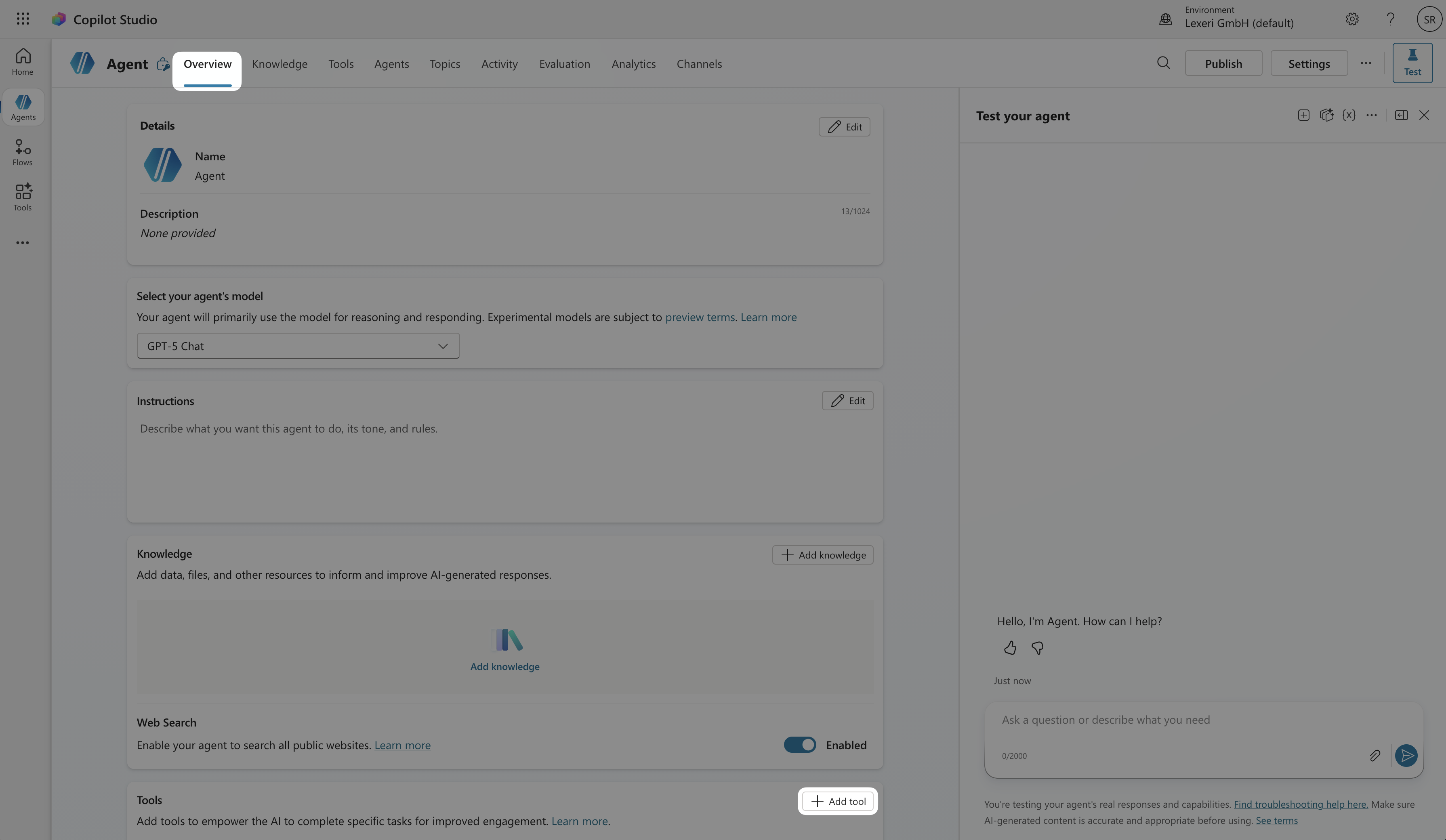
Open Microsoft Copilot Studio and navigate to the agent to which you want to add the Lexeri MCP Server. You can find the overview of your agent under the Overview tab. Scroll down to the Tools section and click + Add tool.
Step 2: Open the Tools area
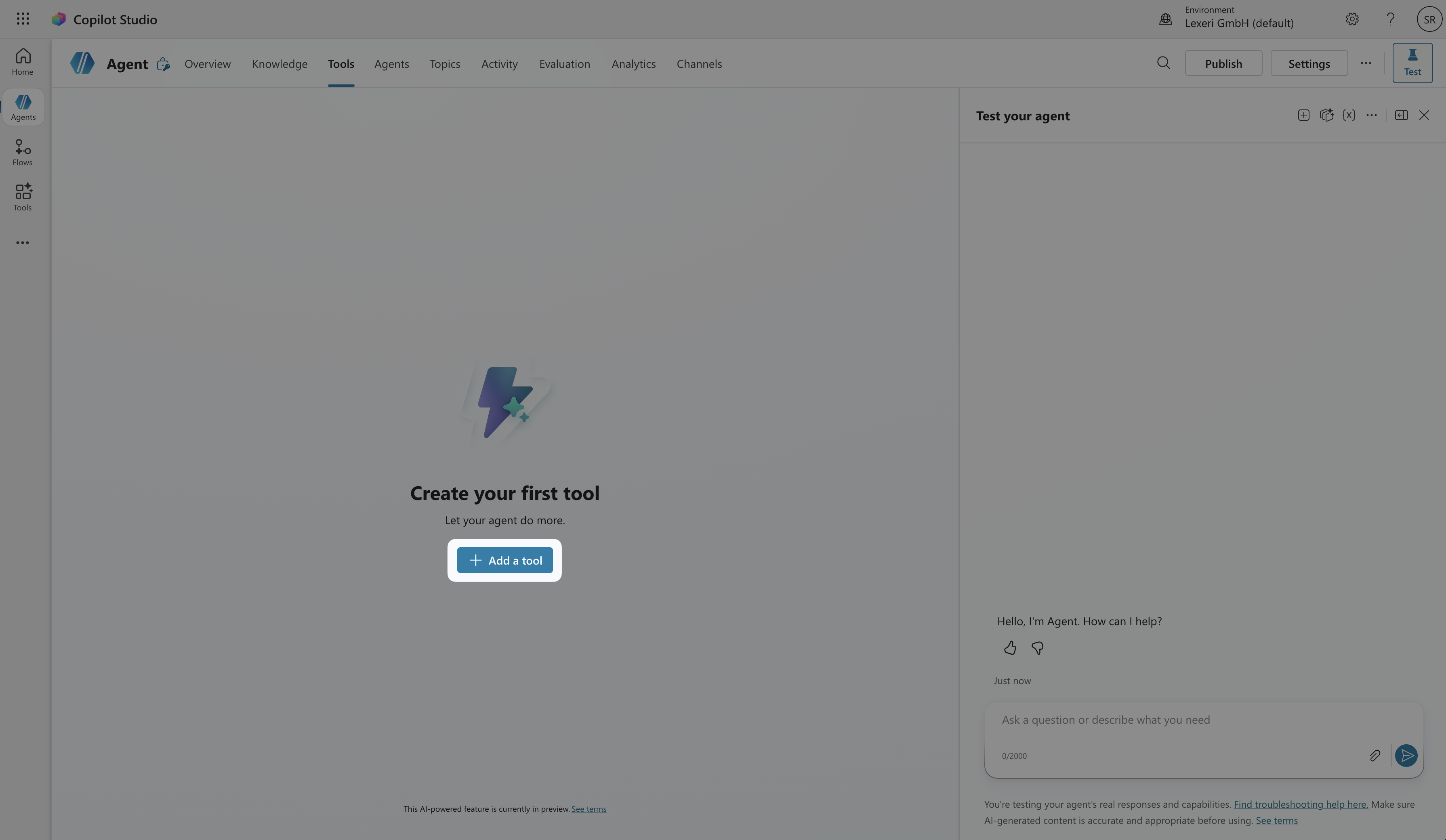
Alternatively, you can navigate directly to the Tools area via the Tools tab in the top navigation. Click + Add a tool there to add a new tool.
Step 3: Select Model Context Protocol
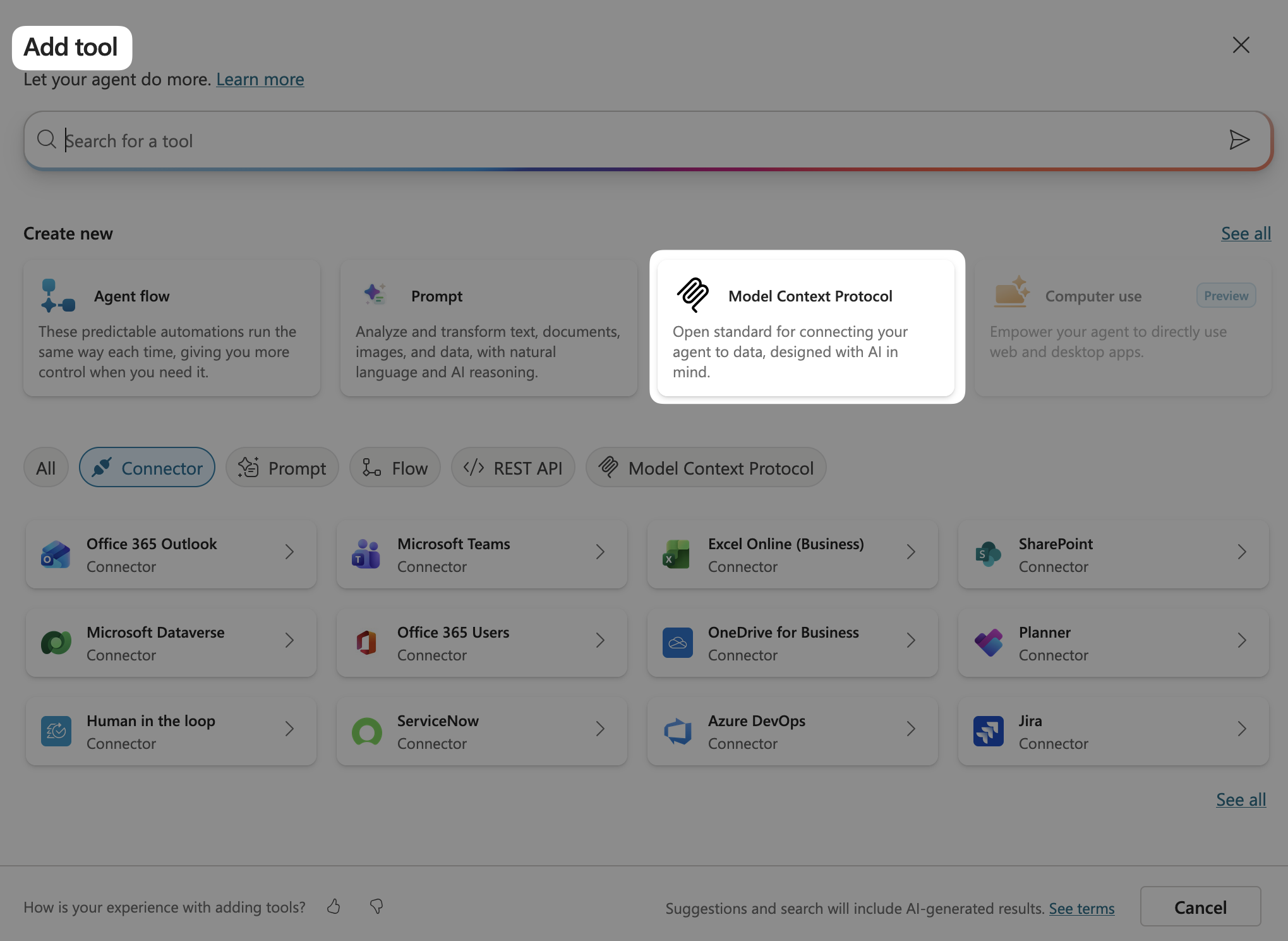
The Add tool dialog offers various tool types. Under Create new, select the Model Context Protocol option.
Note: The Model Context Protocol (MCP) is an open standard that enables agents to connect to external services such as Lexeri.
Step 4: Configure the MCP server
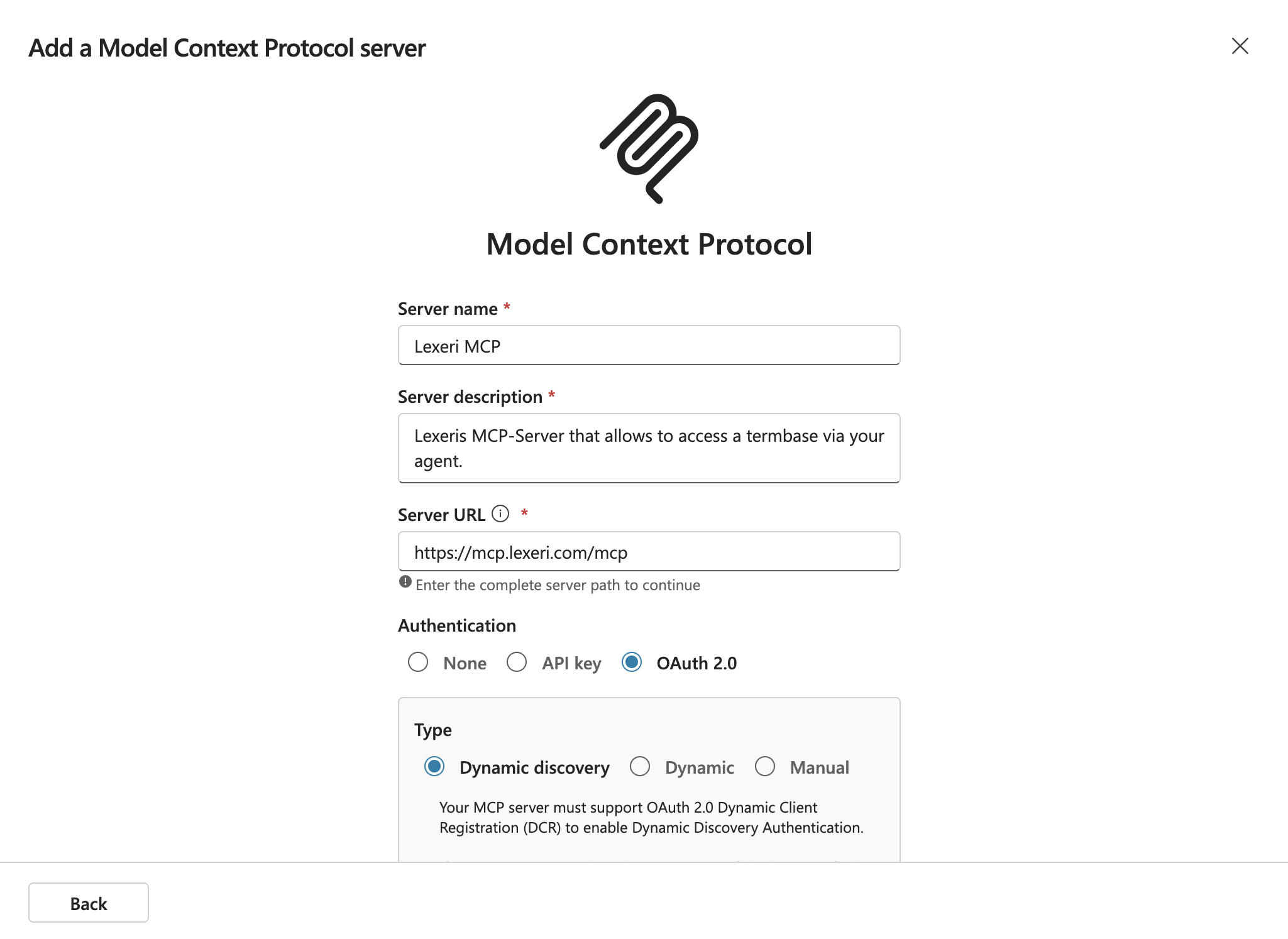
Fill in the Add a Model Context Protocol server form with the following details:
- Server name:
Lexeri MCP - Server description:
Lexeri MCP-Server that allows to access a termbase via your agent. - Server URL:
https://mcp.lexeri.com/mcp - Authentication: Select OAuth 2.0 → Type Dynamic discovery
Click Next (or scroll down) to continue.
Step 5: Establish a connection
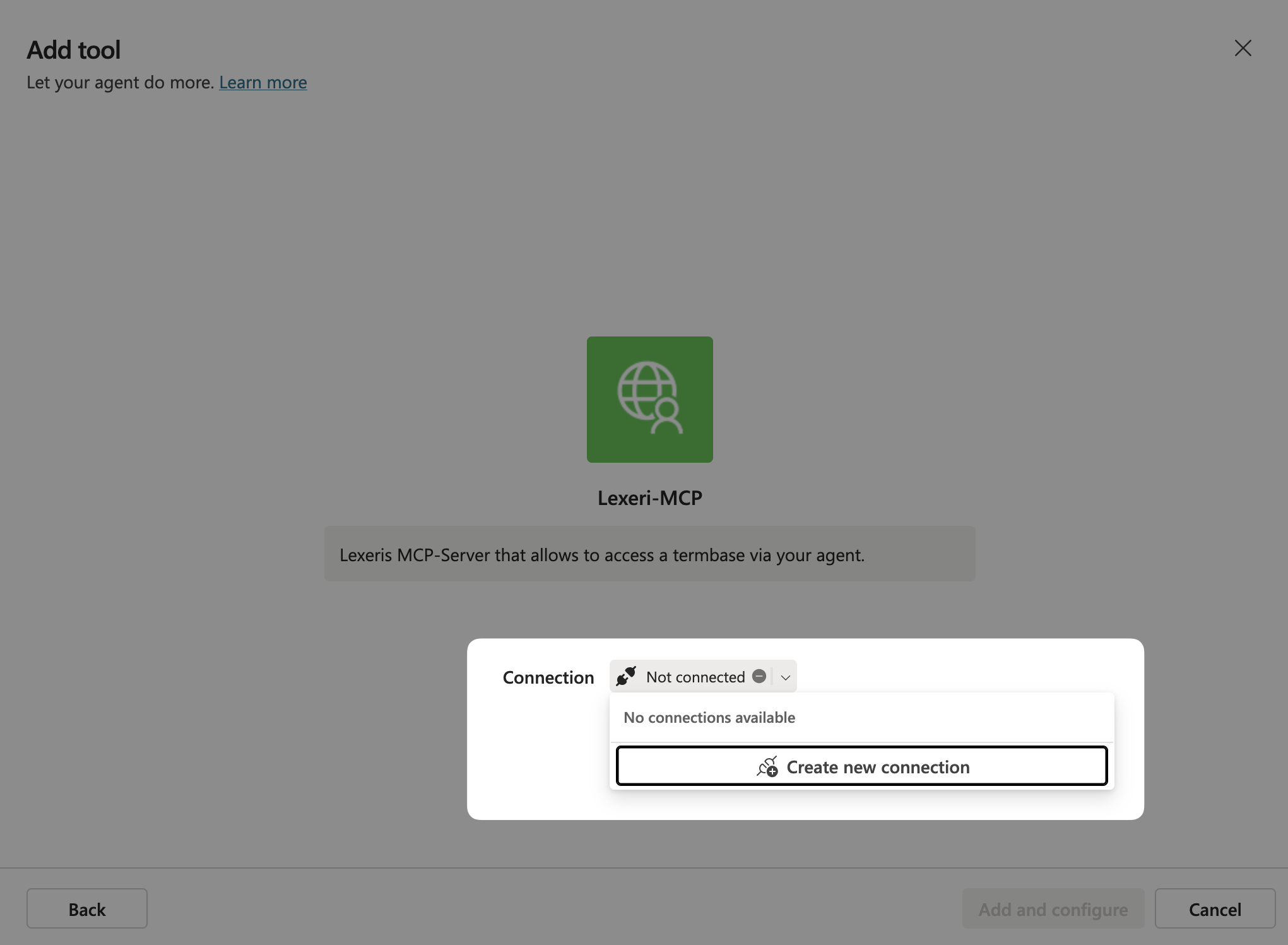
In the next step, you will see the configured server Lexeri-MCP. Since no connection exists yet, Not connected is displayed. Open the dropdown next to Connection and click Create new connection.
Copilot Studio will initiate the OAuth 2.0 authentication flow.
Step 6: Grant access to the termbase
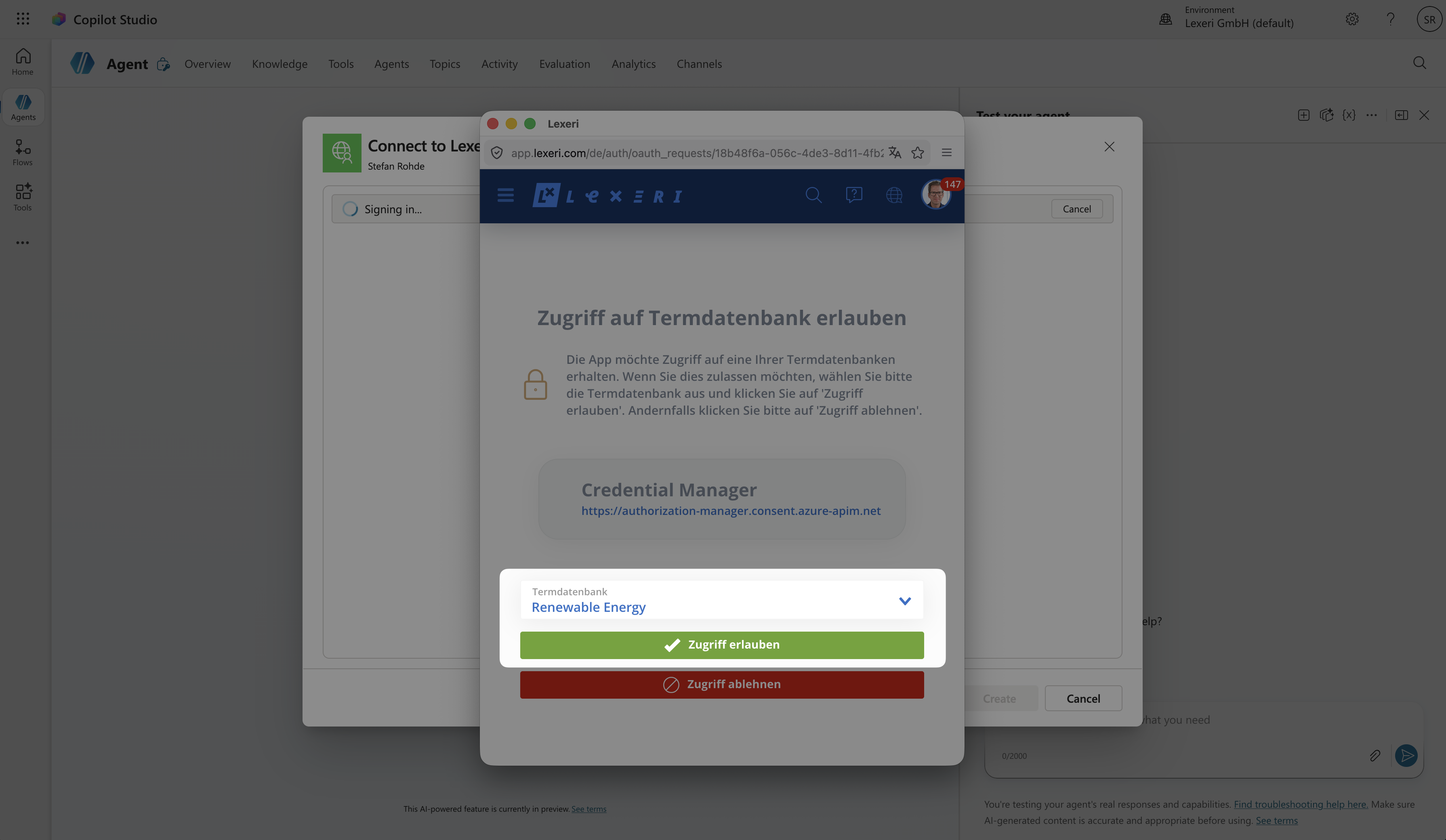
A Lexeri window titled Grant access to termbase will open. Select the termbase the agent should have access to from the dropdown, then click Grant access.
The window will close automatically once the connection has been established.
Note: Access is granted per user – every user who later uses the agent must complete this authorization step once themselves.
Step 7: Review and save the MCP server tools
After the connection is successfully established, Copilot Studio switches to the detail view of the new tool Lexeri-MCP. You will see a list of all available MCP tools, for example:
- get_termbase_information – Retrieve basic information about the termbase
- Search_for_terms – Search for terms in the termbase
- Create_a_term_request – Create a new term suggestion
- check_text_for_term_matches – Check text for terminology violations
- and further tools for terminology management
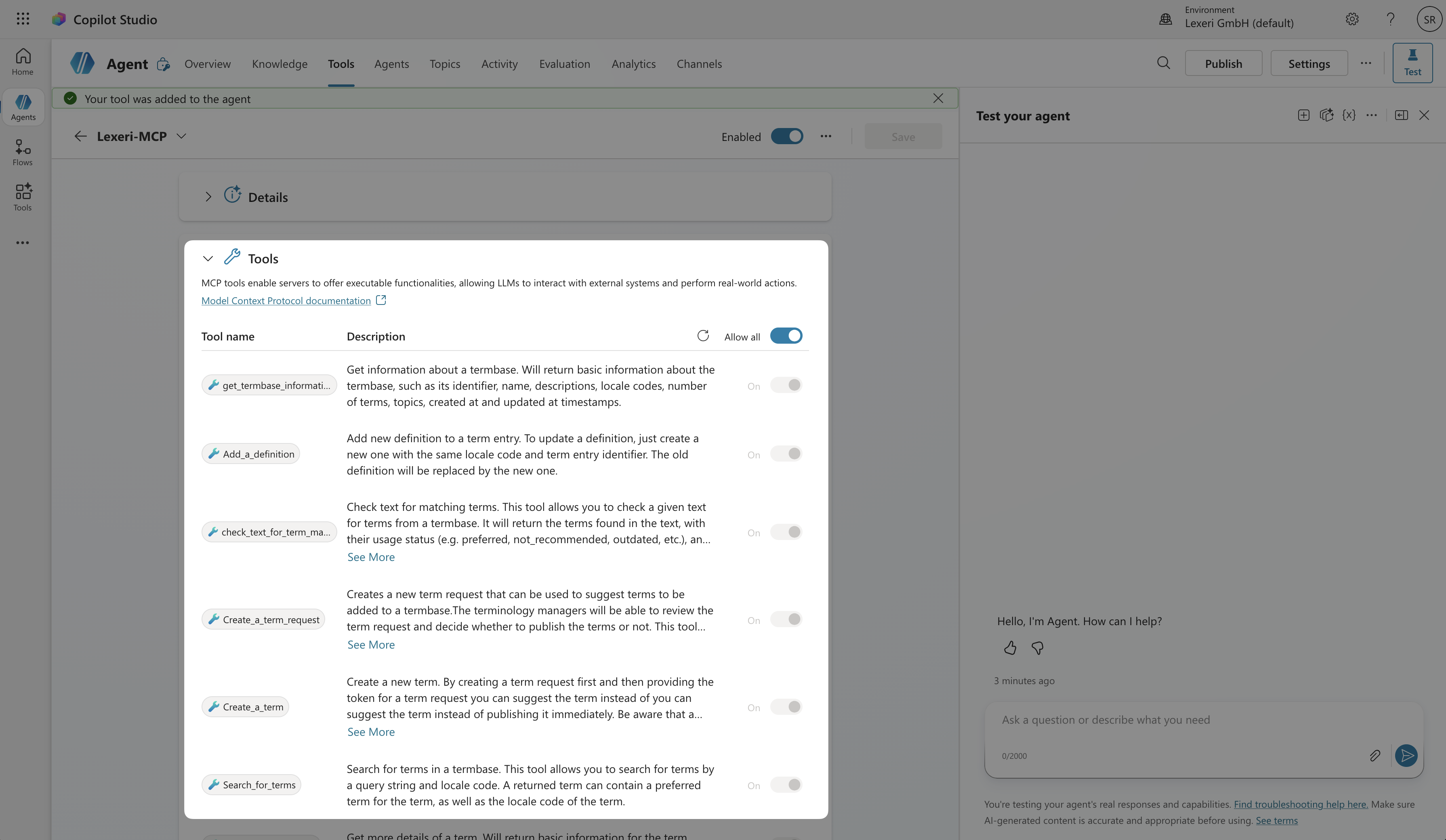
Enable the desired tools using the individual toggles, or turn on all tools at once with Allow all. Then click Save to save the configuration.
The success message "Your tool was added to the agent" confirms that the Lexeri MCP Server is now active.
Next steps
The agent can now interact with the Lexeri MCP Server. Test the integration via the Test your agent panel in Copilot Studio by submitting a request such as:
"Search my termbase for the term 'Renewable Energy'."
"Check the text for correct terminology in Lexeri."