Use Lexeris MCP server in Claude Desktop
The Lexeri MCP server brings your termbase directly into AI assistants such as Claude Desktop, Claude Code, or any other tool that supports the Model Context Protocol (MCP). You can use it to look up terms in the middle of your workflow, check texts against your terminology, propose new terms, or create tasks – all without leaving your assistant.
This guide explains how to connect the server in Claude Desktop. For general information on the MCP server and details about integrating it with other systems, see: MCP server – integrating Lexeri with LLMs
Configuring the Lexeri MCP server in Claude Desktop
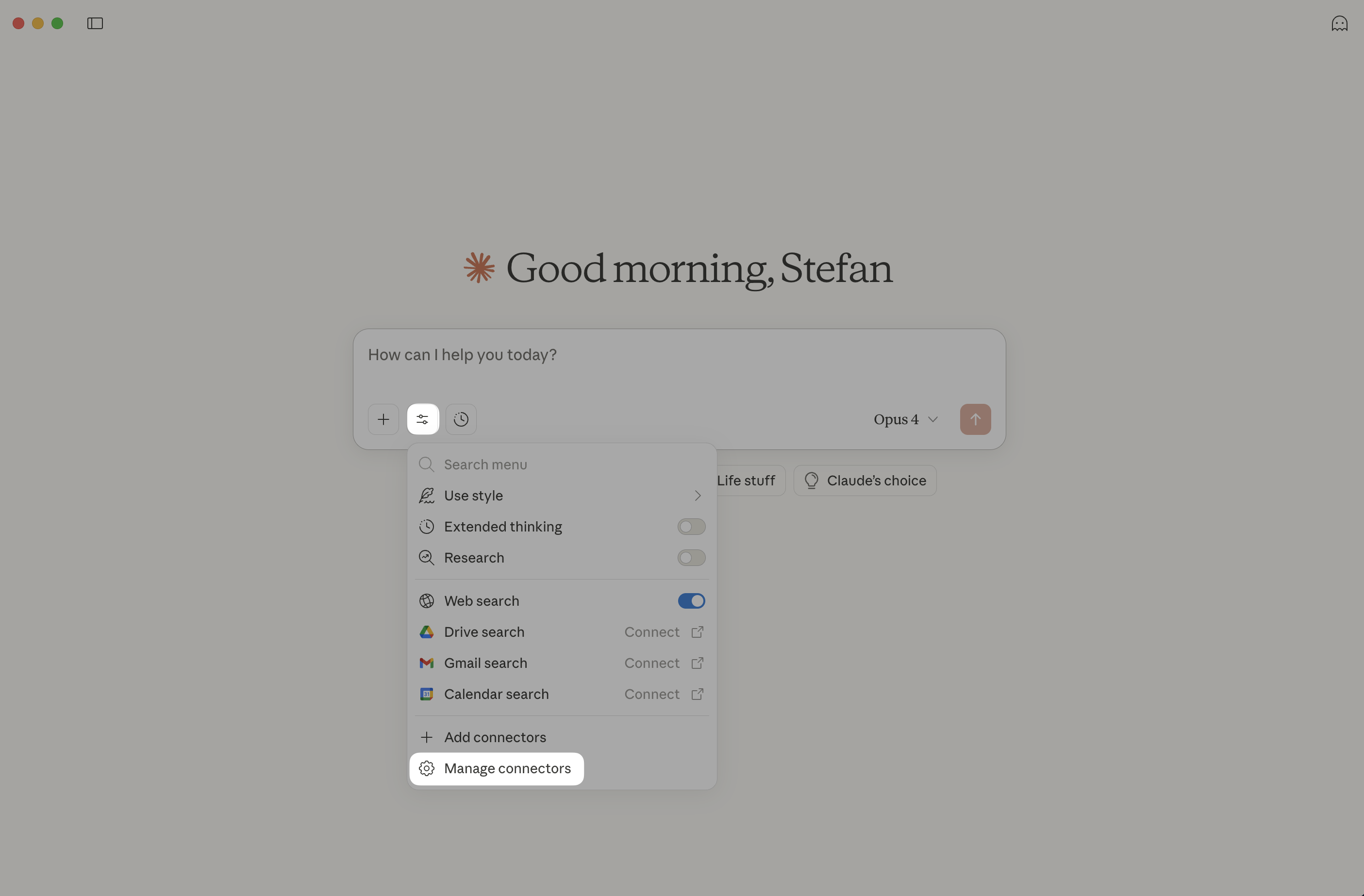
Claude Desktop supports connectors via an MCP server. To configure one, click the "Manage connectors" entry:
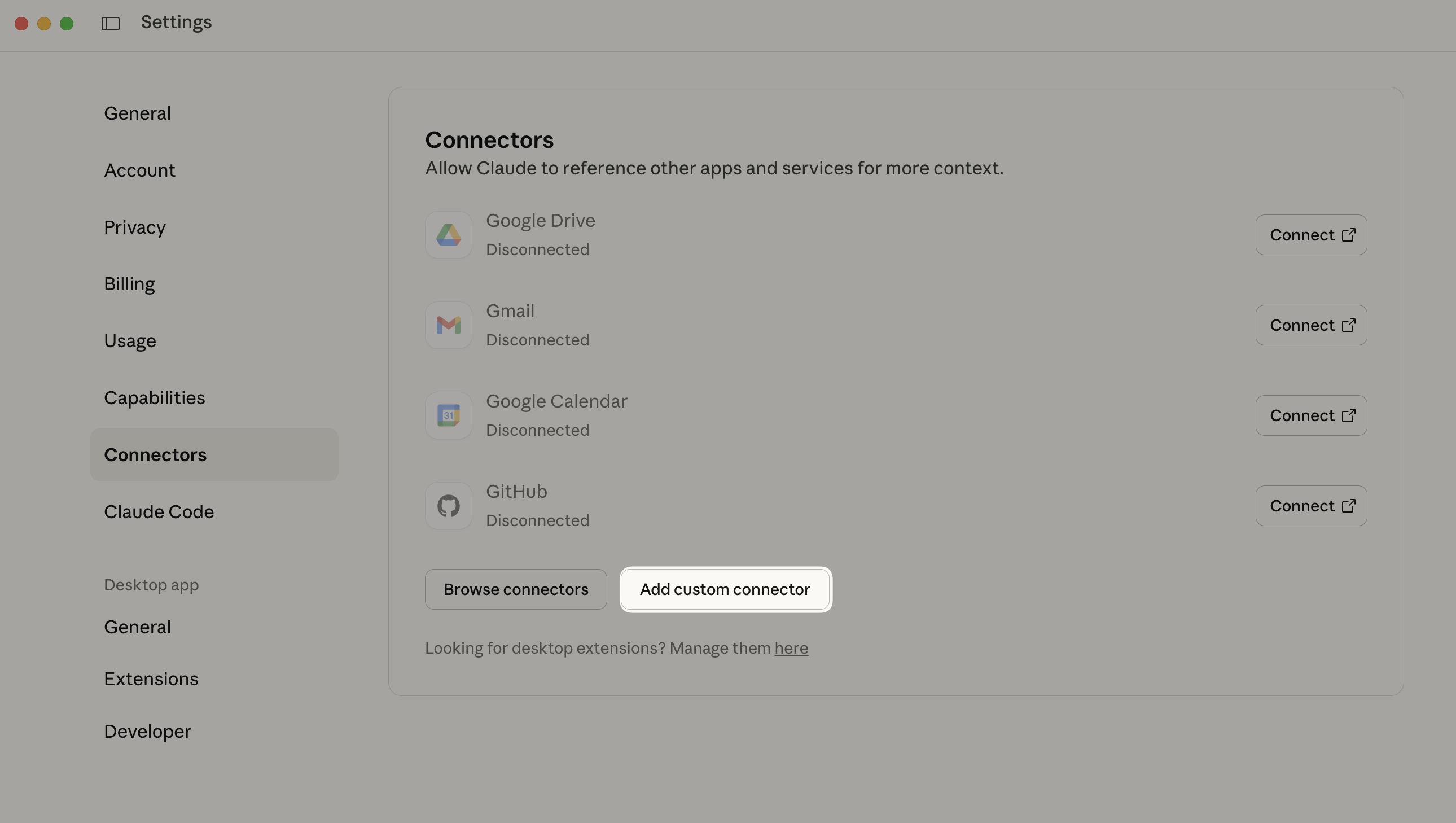
Next, click "Add custom connector":
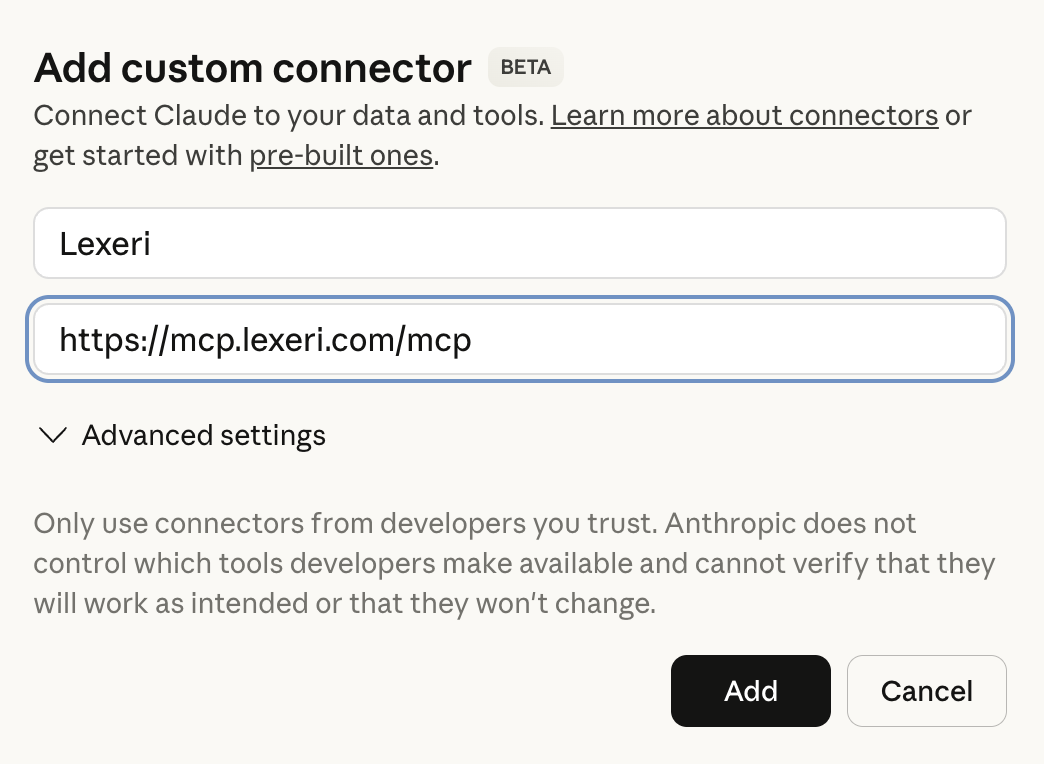
In the dialog that opens, give the connector a name and enter the URL of the MCP endpoint: https://mcp.lexeri.com/mcp
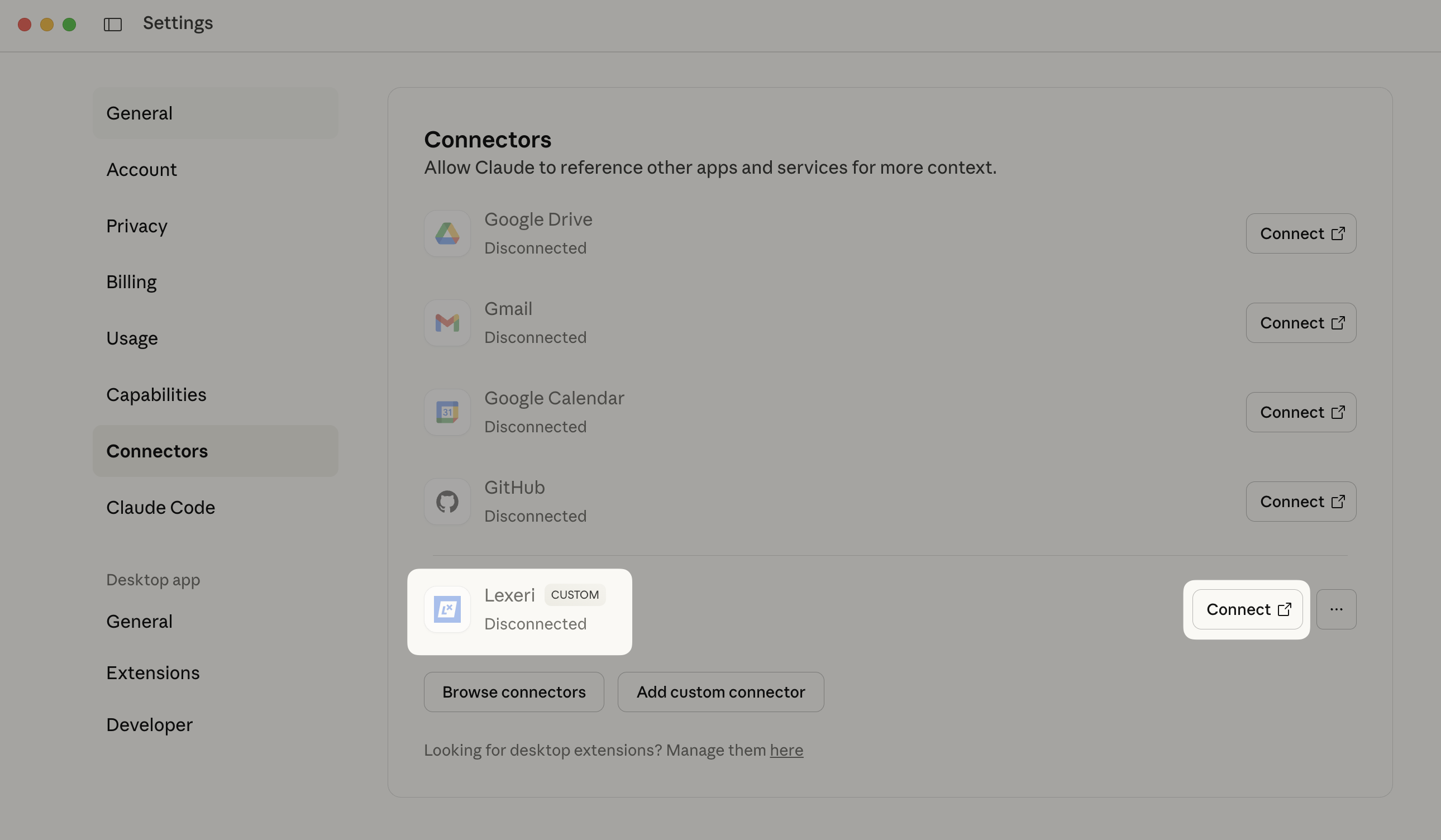
The Lexeri connector is now created, but not yet authenticated. To authenticate it, click the "Connect" button:
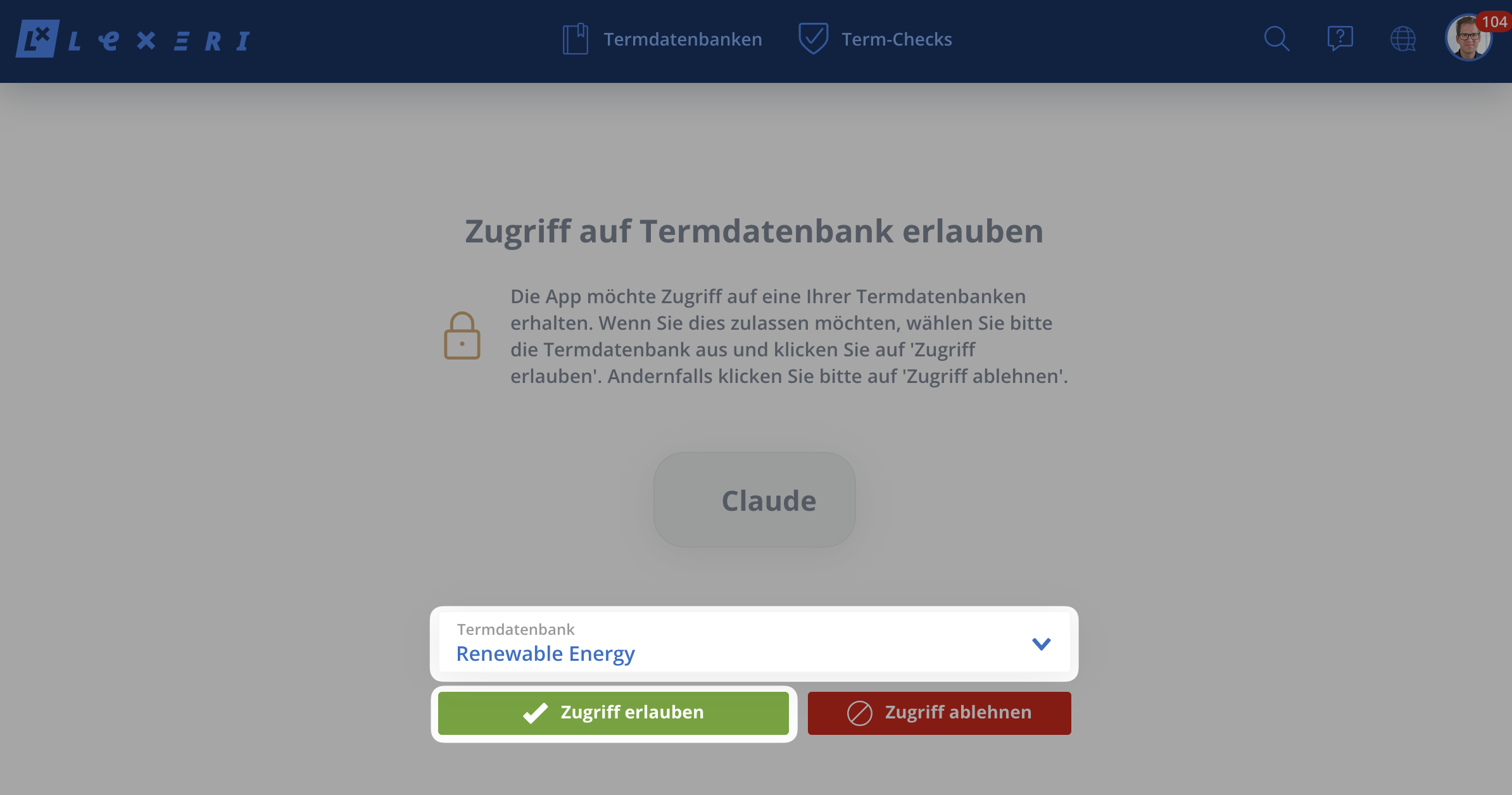
You will be redirected to Lexeri, where you can choose which termbase to share with Claude. Confirm the access:
You will then be returned to the Claude Desktop app, where the Lexeri MCP tools are ready to use:
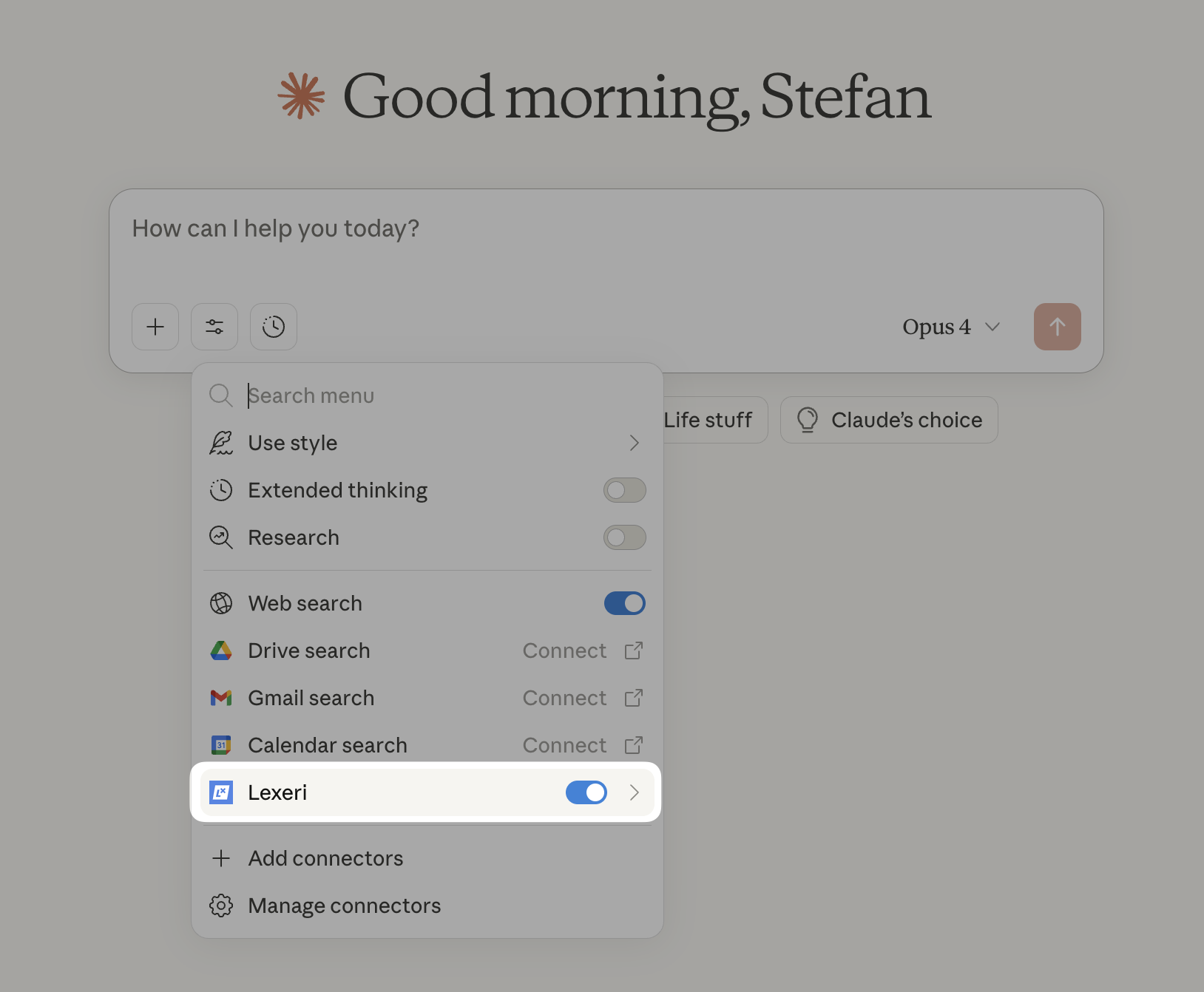
Using the MCP server in Claude
For more information on the MCP server and examples of how to use it, see: MCP server – integrating Lexeri with LLMs