Crowdin – Set up automatic exports
About this feature
This article describes how to set up an automatic export of your Lexeri termbase to Crowdin. Once configured, Lexeri exports your termbase to a glossary in your Crowdin project on a regular basis – this way, your translators always have the current terms from your termbase available in Crowdin.
In this article
- Prerequisites
- Step 1: Create an API token in Crowdin
- Step 2: Open the "Schedule automatic export" wizard
- Step 3: Configure the Crowdin integration
- Step 4: Select the Crowdin glossary
- Step 5: Set the export schedule
- Step 6: Select languages and filters
Prerequisites
- A Crowdin or Crowdin Enterprise account with a project to export to.
- A personal API token (Personal Access Token) from your Crowdin account with permissions for Glossaries (read and write) and Projects (read).
- For Crowdin Enterprise, additionally your organization domain.
- In Lexeri, the role of administrator for the termbase; or, for custom roles, the necessary permissions to set up integrations for the relevant termbase.
- In Lexeri, the add-on automatic exports.
Step 1: Create an API token in Crowdin
For the automatic export, Lexeri requires a personal API token for authentication with Crowdin.
Crowdin (crowdin.com)
- Sign in at
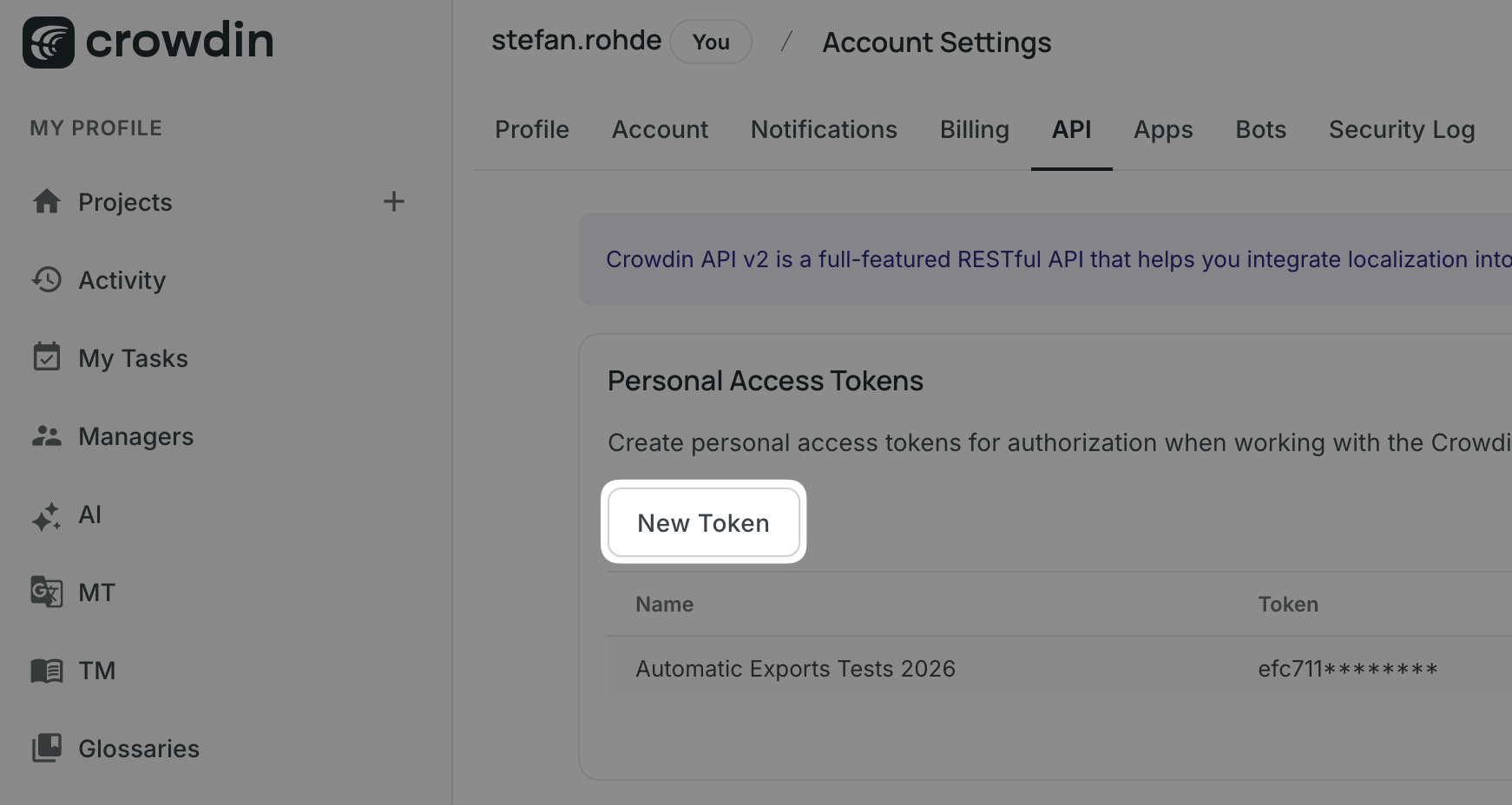
crowdin.com. - Open your account settings and go to the API > Personal Access Tokens section.
- Click New Token and assign a descriptive title, e.g. "Lexeri Exports".
- Enable the permissions for glossaries: Scopes > Glossaries.
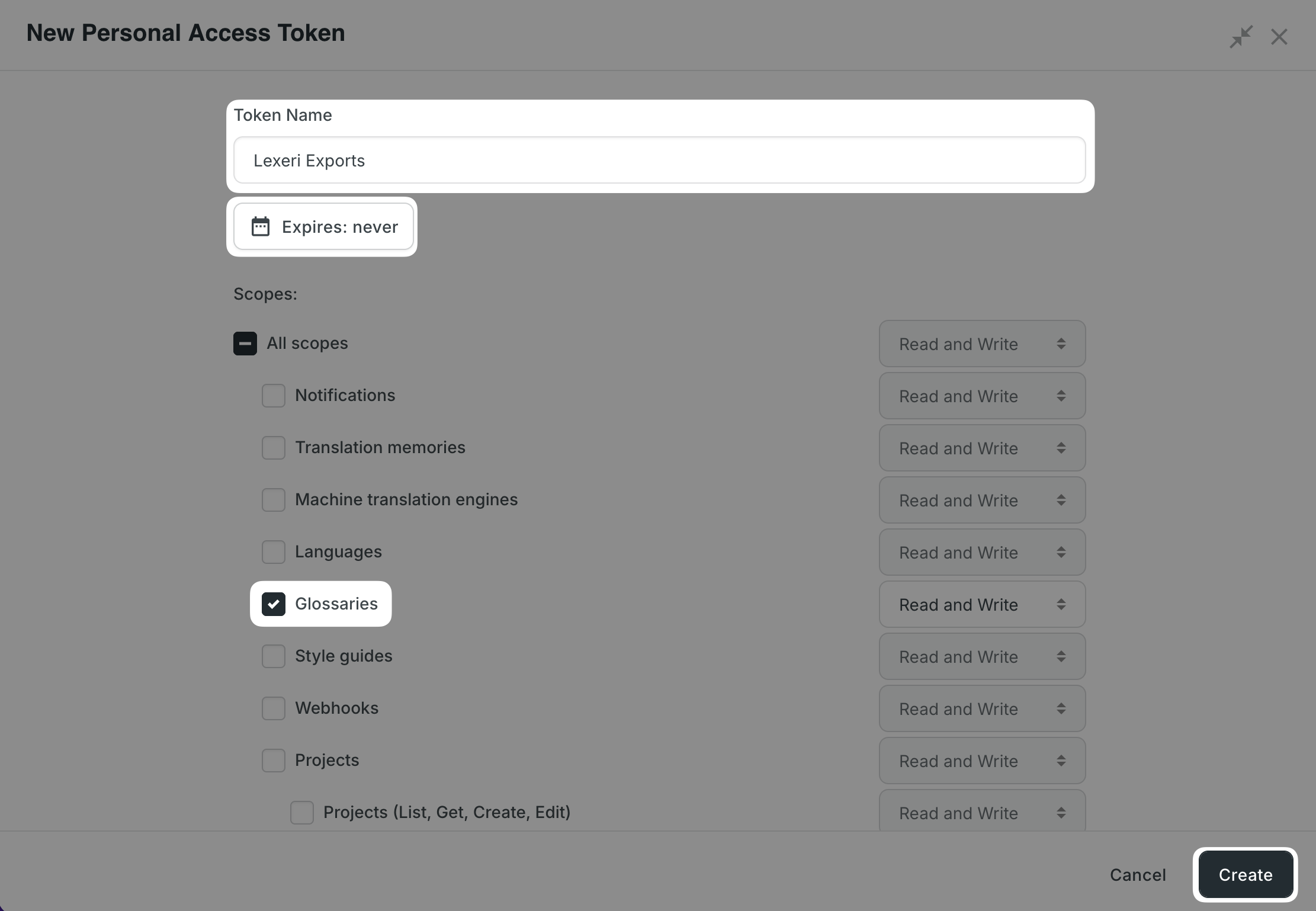
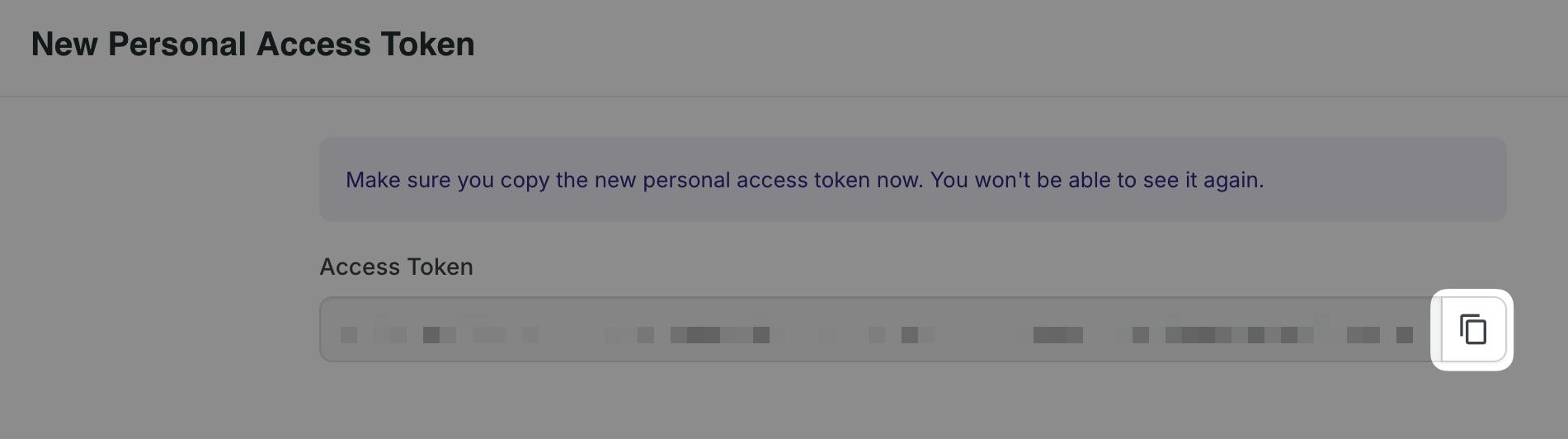
- Generate the token, copy it, and save it.
Note: The API token is displayed in full only once in Crowdin. Copy it immediately after generating it and store it securely and permanently, just like a password.
Crowdin Enterprise
- If you use Crowdin Enterprise, create the personal access token within your organization via Profile > Settings > API.
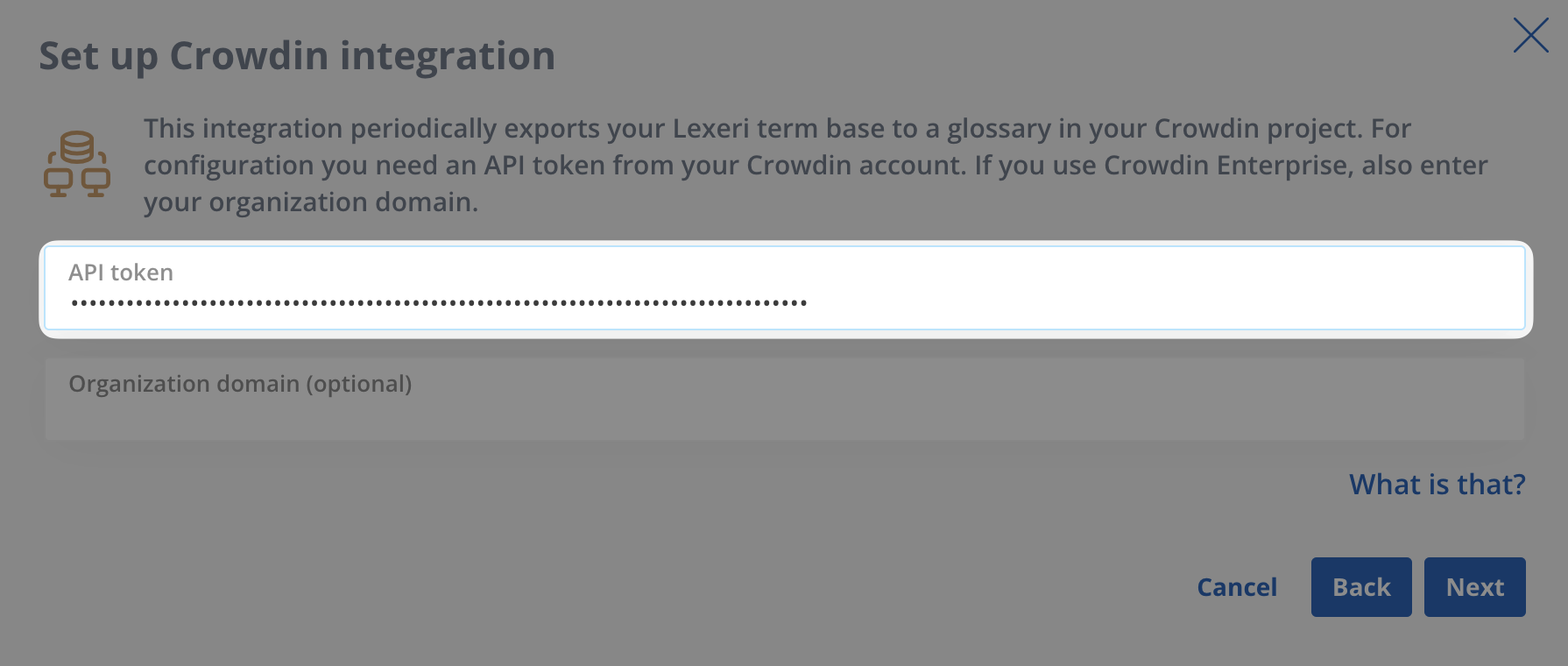
- You need to enter your organization domain – this is the name component of your Enterprise address.
For example, if your Crowdin Enterprise instance is available athttps://your-organization.crowdin.com, the organization domain isyour-organization.
Step 2: Open the "Schedule automatic export" wizard
- In the Lexeri web app, open the termbase you want to export.
- Go to the termbase settings and open the Exports tab.
- Click Schedule automatic export.
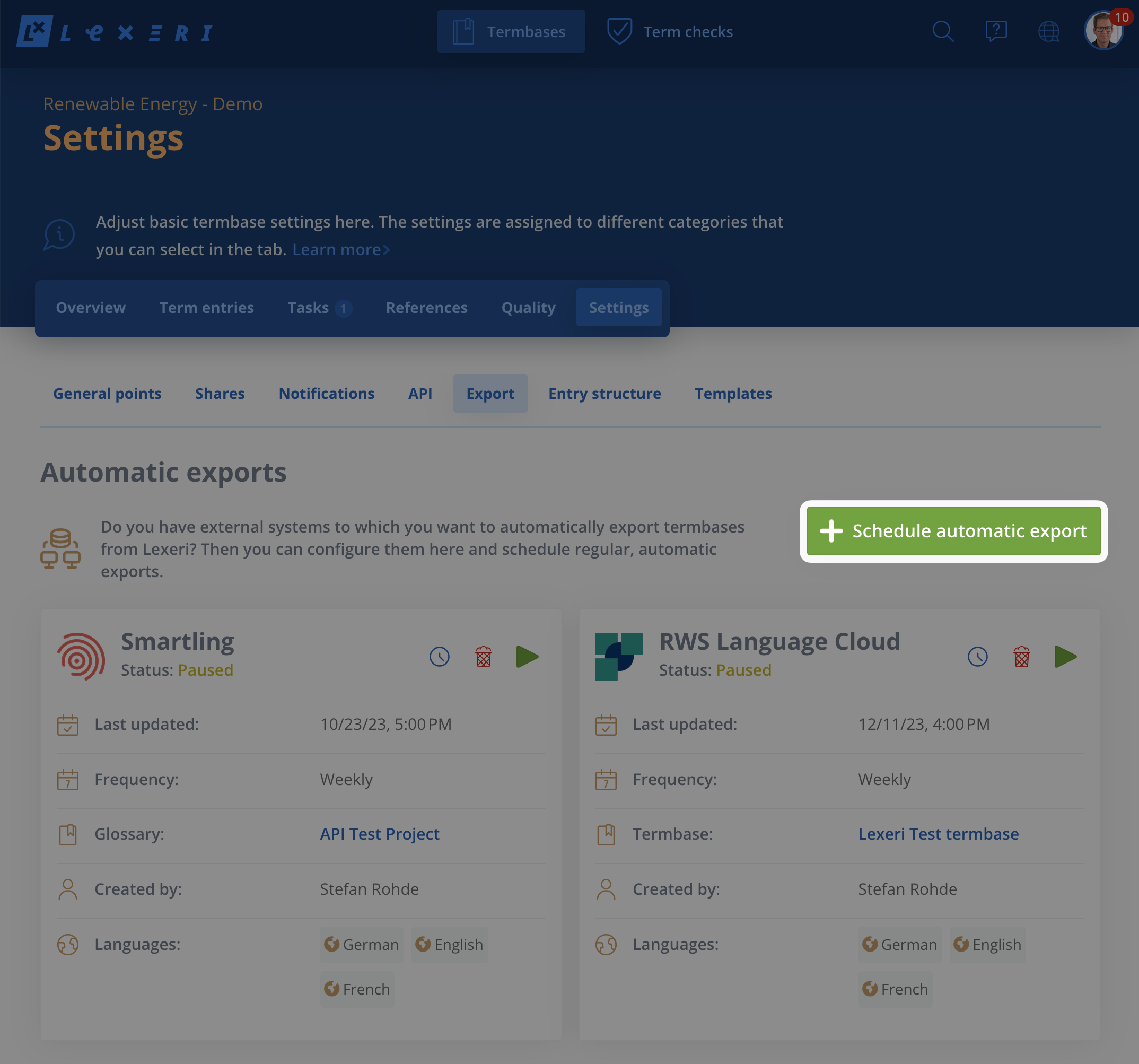
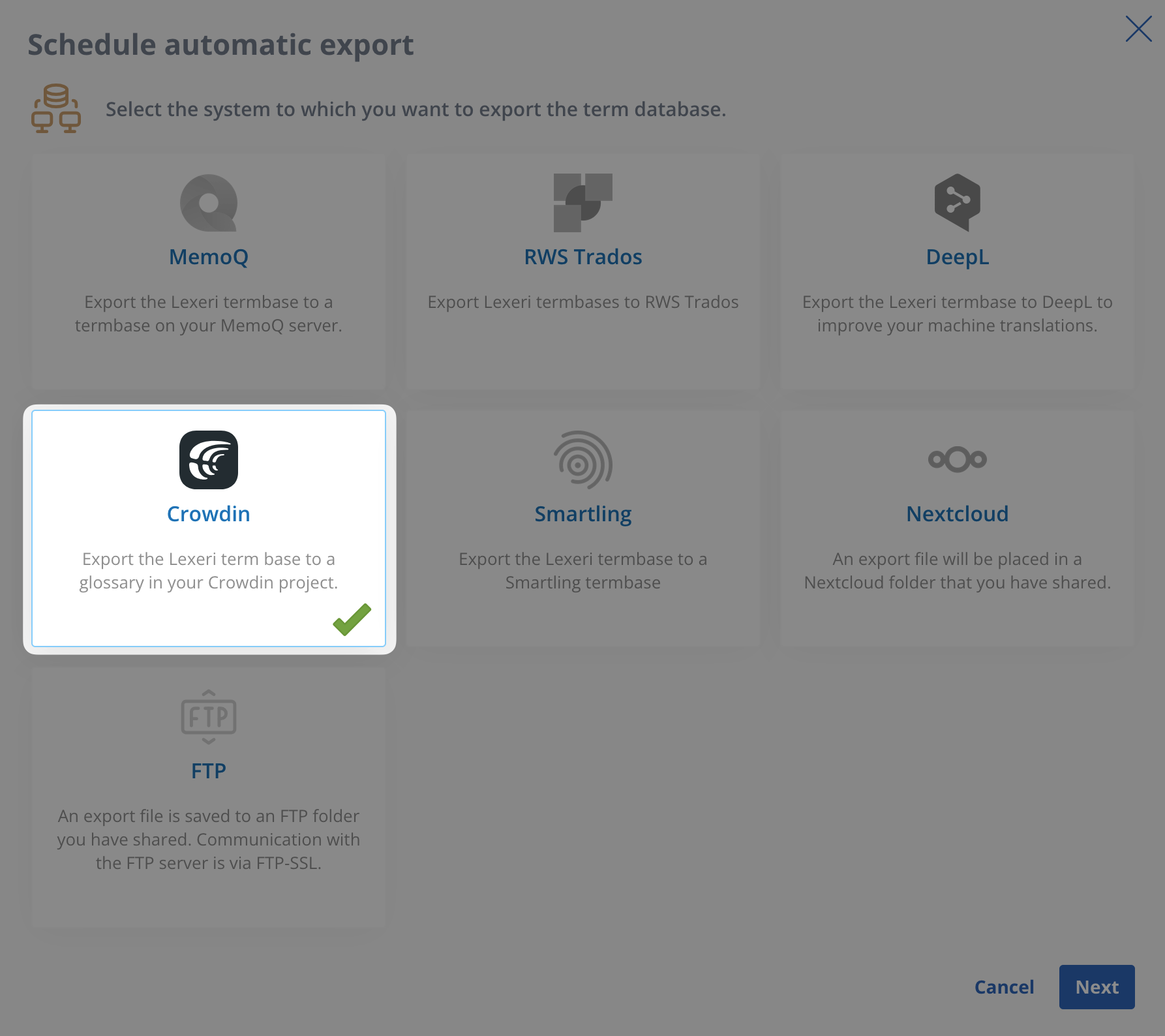
- Select Crowdin as the target system and click Next.
Step 3: Configure the Crowdin integration
- Copy the Personal Access Token you created in Crowdin into the API token field.
- Click Next.
Step 4: Select the Crowdin glossary
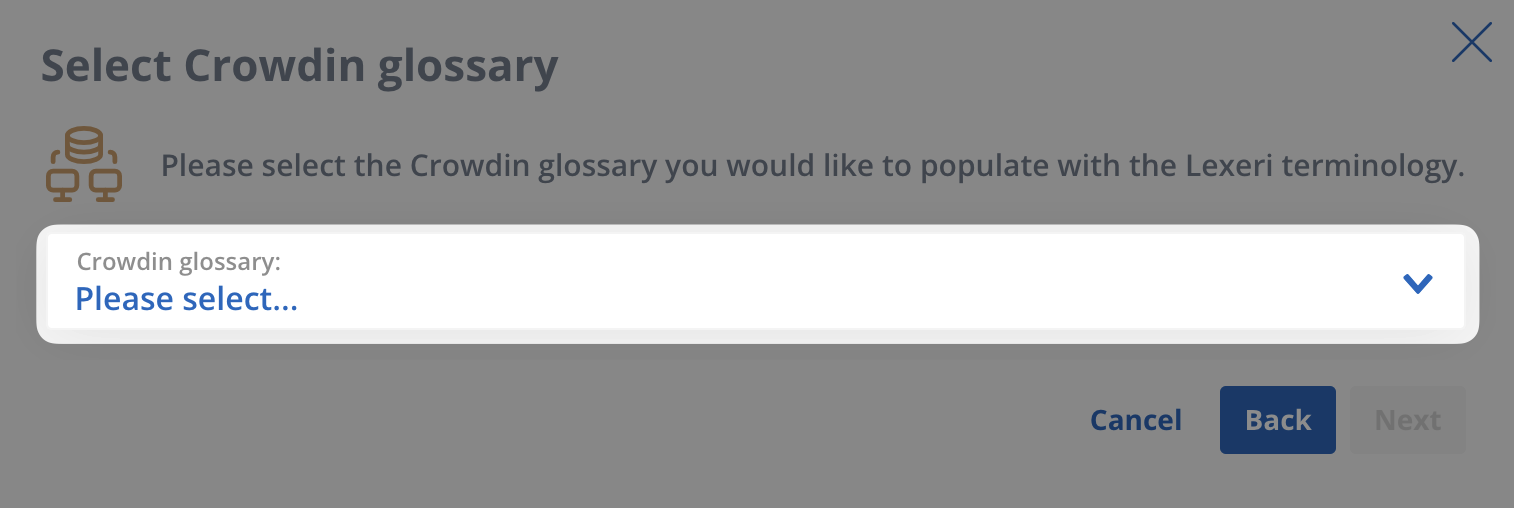
- Select the Crowdin glossary to which your Lexeri termbase should be exported.
- Click Next.
Step 5: Set the export schedule
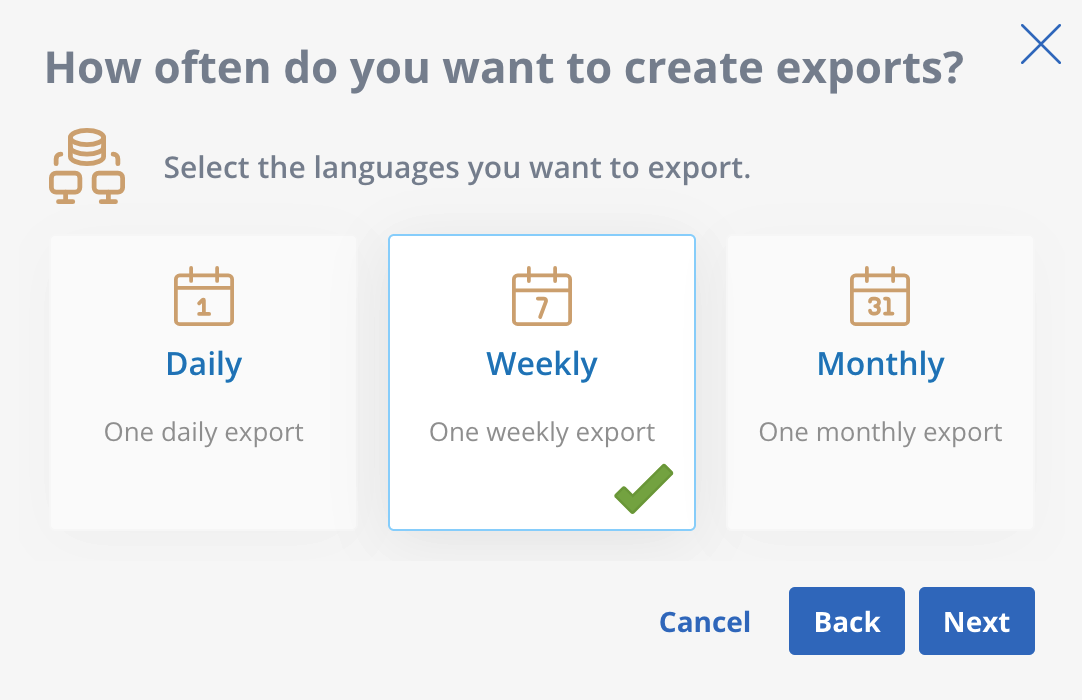
- Select the interval at which the terminology should be exported to Crowdin: daily, weekly or monthly.
Step 6: Select languages and filters
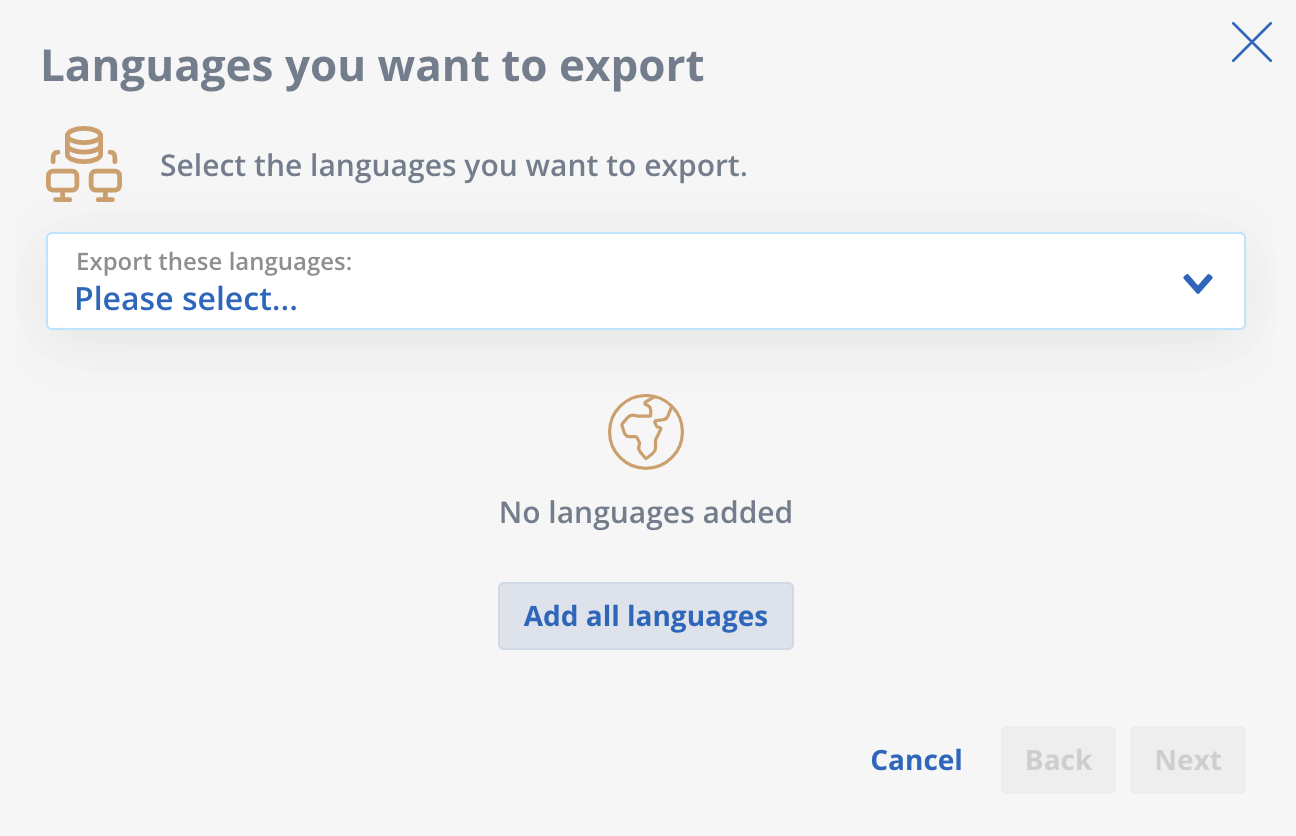
- Select the languages you want to be exported.
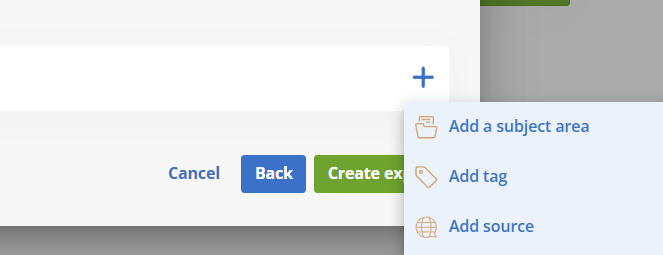
- If needed, set filters for the export.
The terminology will now be exported to Crowdin according to your specified settings.